Every form — AI-generated, from a template, or blank — is fully editable in the same builder.
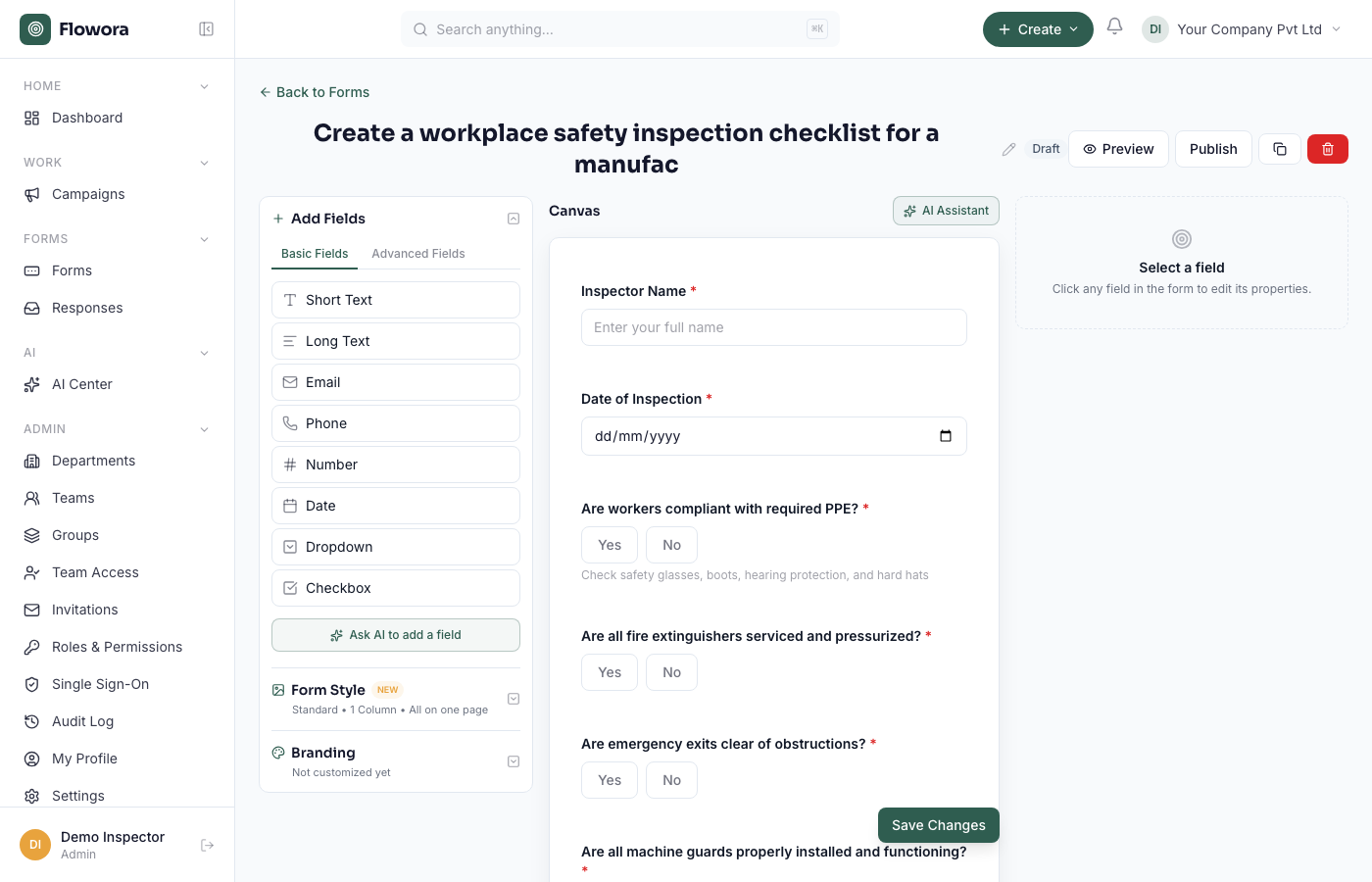
Add a field
Open the field library (the + / Add panel) and drag a field onto the canvas, or click it to append. Field types include short text, long text, email, phone, number, date, time, single choice, multiple choice, dropdown, yes/no, rating, file upload, and layout blocks (headings, text, dividers, images).
Configure a field
Select a field to open its settings:
- Label and help text
- Required toggle
- Placeholder and default value
- Options for choice fields (add, rename, reorder, remove)
- Field-specific validation where it applies
Reorder
Drag a field by its handle to move it. On a multi-page form you can drag a field to a different page.
Remove
Select the field and use Delete. This does not remove that answer from responses already collected.
Undo
The editor keeps an undo/redo history for the current session — use Ctrl/Cmd + Z.