Conditional visibility keeps a form short — a field only appears once the answer that makes it relevant has been given.
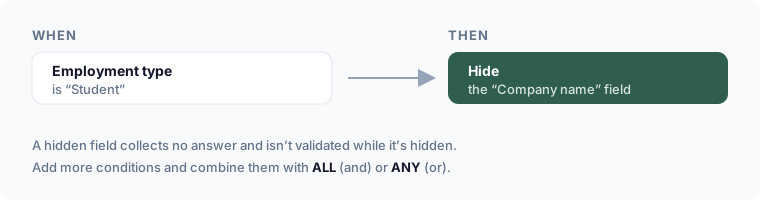
Add a show/hide rule
- In the editor, select the field you want to control.
- Open its Logic section.
- Choose the action — Show this field or Hide this field — when the conditions are met.
- Add one or more conditions. Each condition is: another field → operator → value. For example: Employment type → is → Student.
- Save.
A hidden field collects no answer and isn't validated while it's hidden.
Combine conditions
When a rule has more than one condition, choose how they combine:
- ALL — every condition must be true (AND)
- ANY — at least one must be true (OR)
Example — show a "Company name" field when ALL of: Employment type is Employed AND Country is India.
Which fields can be a condition?
Any other field on the same page. To branch on an answer from an earlier page, put the controlled field on a later page — earlier answers are available.
See every rule at once
The Logic overview lists all conditional rules on the form, so you can review the whole thing without clicking each field.
Operators reference
See Condition operators for the full list (is, is not, contains, greater than, is between, is empty, and so on).