Email is an action step in a form's workflow.
Follow these steps to set it up:
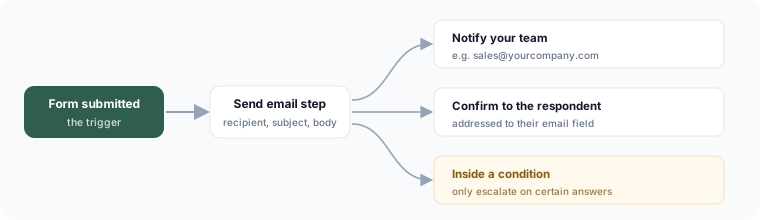
Notify your team
- In the form's Workflow tab, add a Send email step after the submission trigger.
- Set the recipient(s), subject, and body. You can insert submitted answers into the subject and body.
- Save. Every submission now emails that address.
Send the respondent a confirmation
Add another Send email step addressed to the respondent's email field, with your confirmation copy.
Only notify on certain submissions
Put the email step inside a condition branch — for example, only email the escalation address when a rating field is 2 or below.
An email didn't arrive
Check the recipient's spam folder first. Workflow runs are logged — open the run history for that submission to see whether the email step ran and its result.