Send an invitation
- Open Admin → Invitations in the sidebar (workspace owners only).
- Enter one or more email addresses — one per line, or comma-separated.
- Pick a role, and optionally a department or team.
- Click Send Invitations. Each person gets an email and sets their own password when they accept.
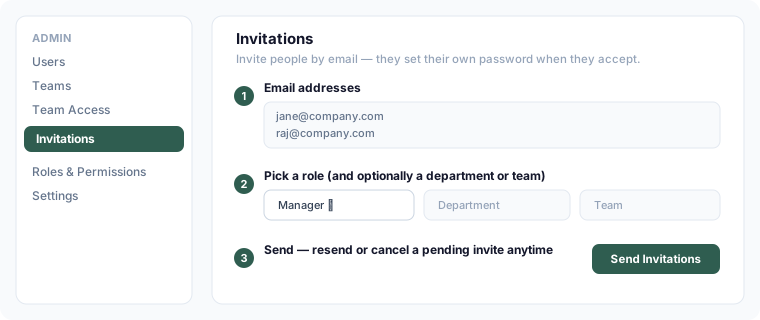
Pending invitations show on the same screen — you can resend or cancel one before it's accepted.
Roles
The role you pick — Manager, Employee, or Viewer — controls what the person can see and do once they join. You can change it later from Admin → Team Access.
Managing members later
See Manage team members for changing roles and removing people.